

People often say that all roads once led to Rome. Today, every marketing path leads directly to your website – whether it’s advertising, organic search or social media. But there’s another source that works very well and still confuses many marketers: direct traffic.
An increase in your direct traffic can show stronger brand awareness and more word-of-mouth referrals. However, because this category actually lumps together so many different traffic types, it can be difficult to understand what it actually represents.
So, how do you properly monitor direct traffic to your website and read this data correctly? We’ll explain everything you need to know in the guide below.
What is Direct Traffic in Google Analytics?
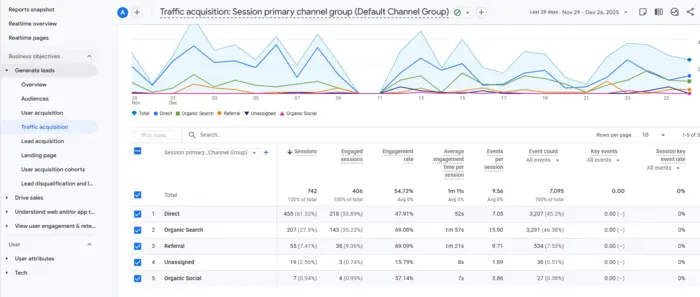
Direct traffic in Google Analytics describes visitors who come to your website without an identifiable referral source. This happens when Google Analytics can’t determine how they arrived. While it may not seem like a big deal, excessive direct traffic can make it difficult to understand the true performance of your website.
In today’s digital age, analyzing data is essential for any effective marketing strategy. It helps you understand how users engage with your site and how to enhance their experience. However, many analytics tools, including Google Analytics, classify untracked visits as direct traffic. This can obscure key insights about your marketing campaigns.
Handling direct traffic correctly is important for making smart decisions and improving your website’s results. If you want to master traffic analysis, earning a digital marketing online degree can be beneficial. It will give you the knowledge to manage analytics efficiently and expand your online reach.
Top Sources of Direct Traffic in Google Analytics
Direct traffic can originate from multiple sources, although sometimes it is due to inaccurate or missing attribution. Using advanced analytics, AI-powered insights, and attribution software can help you accurately identify these sources and improve your campaigns. Here are the main contributors to direct traffic:
1. Bookmarks, autofill, and manually typing site URLs
These are the top contributors to direct traffic in Google Analytics. Many users find your site naturally and, if they find it valuable, they may bookmark it, save it using autofill, or type the website address directly into the browser. Traffic from these actions is counted as direct visits.
However, GA tries to reduce direct sessions in reports. For example, if a user visits your site through organic search and then returns via direct URL entry, GA often counts both sessions as organic searches.
To handle this, consider using marketing attribution tools like SalesPanel. They help track every touchpoint, showing where each visitor actually came from.
2. Missing or broken tracking code
Sometimes, businesses launch new landing pages without including Google Analytics tracking codes. In other cases, GTM triggers may be configured incorrectly, which prevents proper tracking. When this happens, those visits are recorded as direct traffic.
3. HTTPS to HTTP transitions
Clicking from a secure (HTTPS) site to a non-secure (HTTP) site prevents referral data from passing through, marking the session as direct traffic instead of a referral.
Referrer data is typically transferred HTTP → HTTP, HTTP → HTTPS, and HTTPS → HTTPS. If direct traffic increases while referral traffic decreases, the top referrer may have switched to HTTPS. The best solution is to adopt HTTPS on your own site and redirect lost referrals.
4. Dark Social Traffic
Social shares that cannot be traced, such as links shared via WhatsApp, Instagram DMs, or Facebook Messenger, fall under dark social. Currently, 77.5% of link shares occur through personal messaging, which makes up a significant portion of direct traffic.
Social impressions can be linked to revenue and leads using marketing mix modeling. Dark social traffic is valuable for targeting high-converting leads.
5. Non-web documents
Links in PDFs, presentations, or text files do not pass referrer information. Mobile apps can also steal referrer data. Visits from these sources appear as direct traffic.
You can fix this by adding UTM parameters to the links, which allows GA to track the source even when referral information is missing.
6. False redirects
A JavaScript redirect or meta refresh can remove or change referrer data, making sessions appear as direct traffic. It is important to regularly check server-side redirects.
Using 301 redirects on the server ensures that referral data is not lost.
7. Email and offline campaigns
Traffic from emails, newsletters, QR codes, print ads, or flyers often lacks referrer information, causing GA to record it as direct traffic.
Solution:
- Always tag email and offline links with UTM parameters.
- Track campaigns in GA to accurately measure ROI.
8. Internal URL Changes or Broken Links
URL structure updates or broken internal links can cause attribution as direct traffic. Missing canonical URLs or inconsistent linking also contribute.
Best practices:
- Keep internal linking consistent.
- Use canonical URLs to prevent duplicates.
- Audit and fix broken links regularly.
9. AI and Automated Traffic Detection
AI-powered analytics can detect unusual direct traffic patterns, distinguishing between bots, tracking errors, and real users.
Benefits:
- Identifies ambiguous direct traffic.
- Recommends fixes for attribution errors.
- Improves decisions in SEO, content marketing, and CRO.
How to Reduce Direct Traffic in Google Analytics (Fix)
It’s crucial to know exactly where your traffic is coming from in order to make smart decisions for your website. The most effective way to reduce direct traffic and categorize it correctly is to use campaign parameters (UTM codes) in your links. It may sound complicated, but there’s a tool that makes it easy!
The URL Builder tool helps you create campaign URLs without any hassle. A campaign URL is your regular link with an additional code added that tells Google Analytics about the traffic source from those clicks. Use campaign URLs whenever you want to make sure your clicks are being tracked under the right channel!
If your website runs on WordPress, the MonsterInsights URL Builder is the easiest way to add custom campaign parameters to your links. This helps you track specific traffic sources – whether it’s an email, PDF, or a link you posted on TikTok or Discord – and helps you monitor how well your campaigns are performing.
To use the URL Builder, first install MonsterInsights. Then, navigate to Insights » Tools and select the URL Builder tab to start tagging your URLs.
Further Reading: What’s People Also Ask (PAA): How It Works & Steps to Rank in PAA
How to Accurately Attribute Direct Traffic
Knowing exactly where your direct traffic is coming from and understanding which sources drive better conversions is essential to making smart decisions in your marketing strategy.
Here’s how to more accurately attribute direct traffic to your website.
1. Avoid using 302 redirects
First, check to see if any links on your website use redirects. If they do, make sure the redirects are permanent (301 redirects) or not (302 redirects).
You can use the free SEOMinion extension for Chrome or Firefox to quickly see if any links on or within your website have redirects.
2. Add UTM tags to your campaigns
One of the most reliable ways to track the origin of direct traffic is by using UTM parameters.
These are tags added to the end of the URL that allow you to track where visitors are coming from.
To use UTM tags effectively, it helps to understand three key dimensions.
UTM Medium
The utm_medium tag tracks the channel through which traffic is coming. The tag you use depends on the type of channel where the link is being shared.
Examples include:
- Social for social media
- Email for email campaigns
- CPC for paid ads
- Referral for partner websites
- Affiliate for affiliate campaigns
- Document for links in non-web files
UTM Source
The utm_source tag identifies the specific source of traffic. For example, it helps identify whether social traffic came from Facebook, LinkedIn, or YouTube. For emails, it shows whether visitors clicked on a newsletter, welcome email, or product email.
You may also like: How to Find Drafts on Facebook for PC, Android & iOS? 2026 Guide
UTM Campaigns
The utm_campaign tag indicates the action associated with a specific marketing campaign or link. This can be the name of the advertising campaign or the name of the document where the link is included.
Use UTM tags everywhere (yes, everywhere!)
Adding UTM parameters ensures that your web analytics correctly attributes direct traffic to its true source.
For example, use UTM tags on all non-web content, such as whitepapers, templates, or operational kits. In such cases, mark utm_medium as a document.
Similarly, include UTM tags in email campaigns and specify the campaign name in the utm_campaign tag.
Offline marketing materials can also be beneficial. Add UTM tags to QR codes or shortened URLs to track visitors from offline sources.
Using UTM tags allows your analytics tool to assign direct traffic to the right channel, helping you measure which marketing efforts are performing best.
We’ve also created a free UTM link generator that helps you create URLs with the right parameters.
It’s important to understand where your direct traffic is coming from. Tracking it using UTM parameters can help you increase your direct traffic signals. Often, direct traffic results from your SEO or advertising campaigns. To increase this traffic, you first need a solid traffic acquisition strategy.
Conclusion
Direct traffic and unassigned traffic represent two different types in Google Analytics, yet both play an important role in analyzing and reporting on your website’s performance. Proper tracking and tagging helps reduce unassigned traffic and provides a clear picture of your visitor sources.
Read More: 22 Examples Of Bad Websites: List of Worst Websites in 2026
FAQs:
Q1. How does Google Analytics classify direct traffic?
Google Analytics considers direct traffic as sessions with no identifiable source, most often when users manually enter a website address or access it through saved bookmarks.
Q2. Why do I see unassigned traffic in Google Analytics?
You typically see unassigned traffic when Google Analytics fails to identify the traffic source due to missing UTM parameters, incorrect tagging, or tracking configuration issues.
Q3. How can I reduce unassigned traffic in Google Analytics?
You can reduce unassigned traffic by implementing the correct UTM tags, reviewing and fixing your tracking setup, and managing tags efficiently through tools like Google Tag Manager.