
Every day, millions of people open their browsers and either type something into the search bar or directly enter a website address. But have you ever wondered what actually happens in both cases – and when one might be better than the other?
Google’s search engine is known worldwide for being fast, easy to use, and packed with helpful tools. One simple yet powerful feature you’ll see on most browsers is the bar that says: “Search Google or type a URL.” This line may seem basic, but it’s the gateway to everything the internet has to offer.
So what does it really mean?
When you search on Google, you’re asking Google to look at billions of web pages and return the most relevant results. This is helpful when you’re not sure what website you need or you’re looking for general information, news, or answers to a question.
According to studies, most online traffic (about 93%) comes from search engines. That’s why it’s useful to know how both options work and when to use them. Whether you’re trying to find something new or visiting a trusted website, understanding the difference can help you save time and stay safe online.
In short, Google’s “Search or type a URL” feature is designed to make your browsing experience easier and faster especially for those new to the web. It’s a simple tool with two powerful functions, depending on what you need.
What is “Search Google or type a URL”?
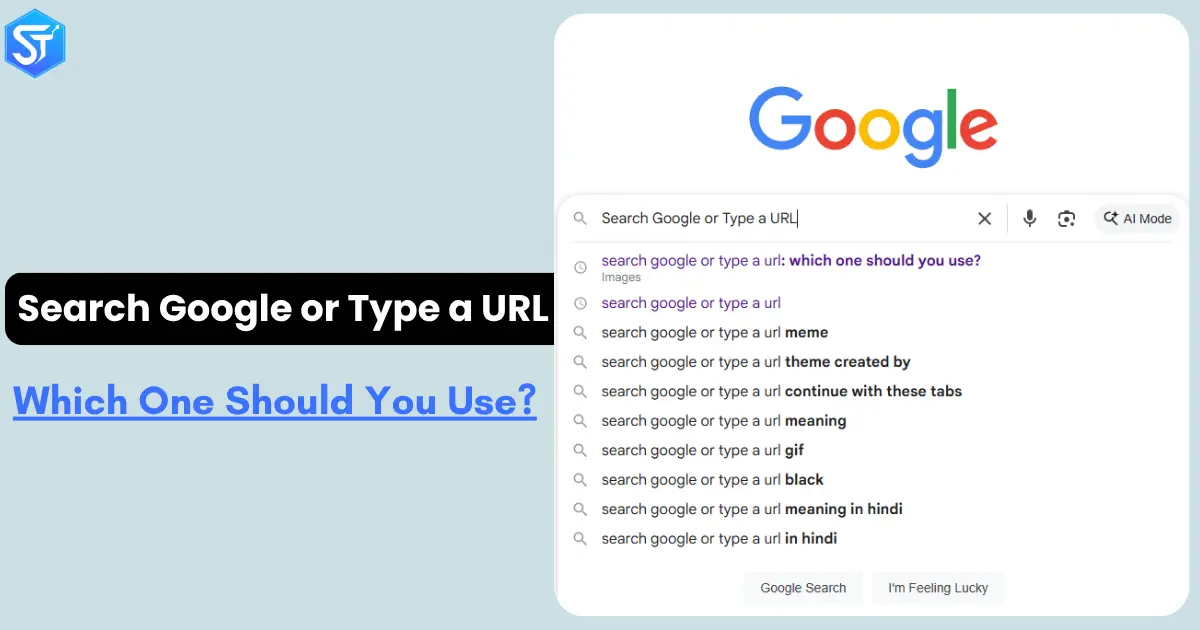
“Search Google or type a URL” is the text you see in the search box (also called the Omnibox) when you open a new tab in Google Chrome. It shows you two easy ways to use Chrome for browsing.
The first way is to type what you want to search for in the box. Press Enter, and Chrome will show you search results from Google.
The second way is to type a website link (also called a URL) in the same box. Press Enter, and Chrome will take you directly to that site. A URL is simply the full web address of the page.
This feature also appears in Chrome Canary, a test version of Chrome where Google tries out new tools and ideas.
How to Search Effectively on Google and Use URLs for Quick Access
Google is the most widely used search tool for finding anything online. No matter your business or need, the right way to search helps you get better results faster. Searching on Google may seem simple, but a few tips can make it even better. Here are some simple steps you can follow to search well on Google:
Simple steps to search on Google:
- Open a browser on your computer or phone. This can be Chrome, Firefox, Safari, or any other.
- Go to the Google homepage by typing google.com in the address bar.
- In the search box in the middle, type the key words or phrases you want to search for.
- Google will show you several results. The first few pages usually have the most useful and accurate results.
- Click on the link that looks best for what you’re trying to find.
How to use URLs to find what you’re looking for:
Another way to find relevant information online is to enter a URL. This method is fast and takes you directly to the site you’re looking for.
1. Open your browser and go to the address bar at the top.
2. Type the full website address, such as example.com, and press Enter. This will take you to the homepage.
Search on Google vs. Typing a URL: What’s the Real Difference?
Many people get confused about whether they should search on Google or just type the website address into their browser. Both methods work well, but their uses are different. Here’s a simple comparison to help you choose the right option:
| Point of Difference | Searching on Google | Typing a URL |
|---|---|---|
| Speed | Takes more time as you go through search results. | Loads faster if the website address is known. |
| Search Result Control | Google shows results influenced by ads and its algorithm. | Goes directly to the site without distractions or ads. |
| Safety | Warns you about unsafe sites through Google’s filters. | Risky if you mistype or land on a fake site. |
| Ease of Use | Helpful when you don’t know the exact website or want to explore. | Requires accurate knowledge of the website address. |
| User Experience | Lets you discover related tools, info, and websites. | Offers direct access with no unnecessary steps. |
| Use Purpose | Ideal for general browsing or when unsure what to search. | Best for visiting a specific, known website. |
| Error Chances | You might click irrelevant or misleading search results. | Few errors if you type the correct URL. |
You may like this: How to Remove Your Listing on Whitepages: A Complete Guide in 2026
Google’s Secret Cheat Code – 6 Powerful Search Operators You Should Know
Do you really want to unlock SEO superpowers? Learn these 6 Google search operators and control search results like a pro:
- “Keyword.” Use this exact match trick to find only what you’re looking for – no confusion.
- “Related.” Find websites like your competitor – yes, spying is allowed here.
- “Minus (-).” Remove search results you don’t want with this simple exclude trick.
- “Site.” Check every indexed page of any website. It’s like reading Google’s secret notebook.
- “Inurl.” Find URLs that contain your chosen keywords.
- “Intitle.” Find pages that have specific words in their titles. Great for headline ideas.
Now let’s break down these 6 hidden search operators with simple examples:
1. Exact Match Search
- Required: Show results that contain the exact phrase you type.
- Example: Search,
- “best SEO tools”
- Result: Google will only show pages that match “best SEO tools” exactly – no changes or swapped words.
2. Exclude Conditions (-)
- Required: Remove things you don’t want from your search.
- Example: Search,
- “best SEO tools -free”
- Result: Google shows pages about “best SEO tools” but hides anything that includes “free.” This is perfect when you’re checking out paid tools.
3. Find Similar Sites (Related:)
- Required: Do you want websites that are similar to your favorite or your competitor?
- Example: Search,
- “related:moz.com”
- Results: Google will list websites like Moz such as Ahrefs, SEMrush, HubSpot, etc. Very helpful for competitor research or finding partners.
Further Reading: 299+ Trending Instagram Hashtags to Increase Likes and Followers (2026)
4. View indexed pages (site:)
- Required: View every page from a site indexed by Google.
- Example: Search,
- “site:yourcompetitor.com”
- Results: Google shows all indexed pages from that website. Great for checking competitor content ideas or their site structure.
5. Search for words in titles (intitle:)
- Required: Find pages with specific words in the title.
- Example: Search,
- “intitle:”SEO trends 2024″”
- Results: Only pages with “SEO trends 2024” in the title will appear. Great for researching topic ideas or checking who else is covering that topic.
6. Search URLs (inurl:)
- Requirement: Find pages that have specific words in their URLs.
- Example: Search for,
- “inurl:”guest-post””
- Result: Google shows sites that have “guest-post” in their URLs. Great for finding websites that are open to guest posting and outreach.
Read Next: What’s The First Step in The Search Engine Optimisation Process for Your Website?
Conclusion
This feature is really helpful, especially in today’s fast-paced digital world where time passes very quickly!
The ‘Search or type a URL’ option is useful when the user wants to learn something new or wants to open a specific website.
It goes through the large amount of information available on the internet and displays the most helpful results in a very short time (just a few microseconds).
Any topic can be easily searched using the search engine. Also, the user can open any page by typing its web address in the bar without any additional steps.
Apart from that, there are add-on tools available in the browser that make the search or URL typing feature work better, so try them out!
FAQs:
Q1. What are the uses of the Omnibox in Chrome?
The Omnibox works like a regular browser address bar, but you can also use it like a search engine. In Google Chrome, the Omnibox lets you find information, solve small calculations, and answer quick questions like “ft to cm” conversion.
Q2. What is the purpose of the URL bar in a web browser?
The URL bar in a browser helps you open a specific website directly by entering its address. Many people also call it the location bar because it points you to a specific location you want to visit on the internet.
Q3. What does “Search Google or type a URL” actually mean?
“Search Google or type a URL” is the default message that appears inside the browser’s address bar (Omnibox). It tells you that you can either enter a website link or simply type a query to search on Google. Modern browsers like Chrome also display smart suggestions as you type.