
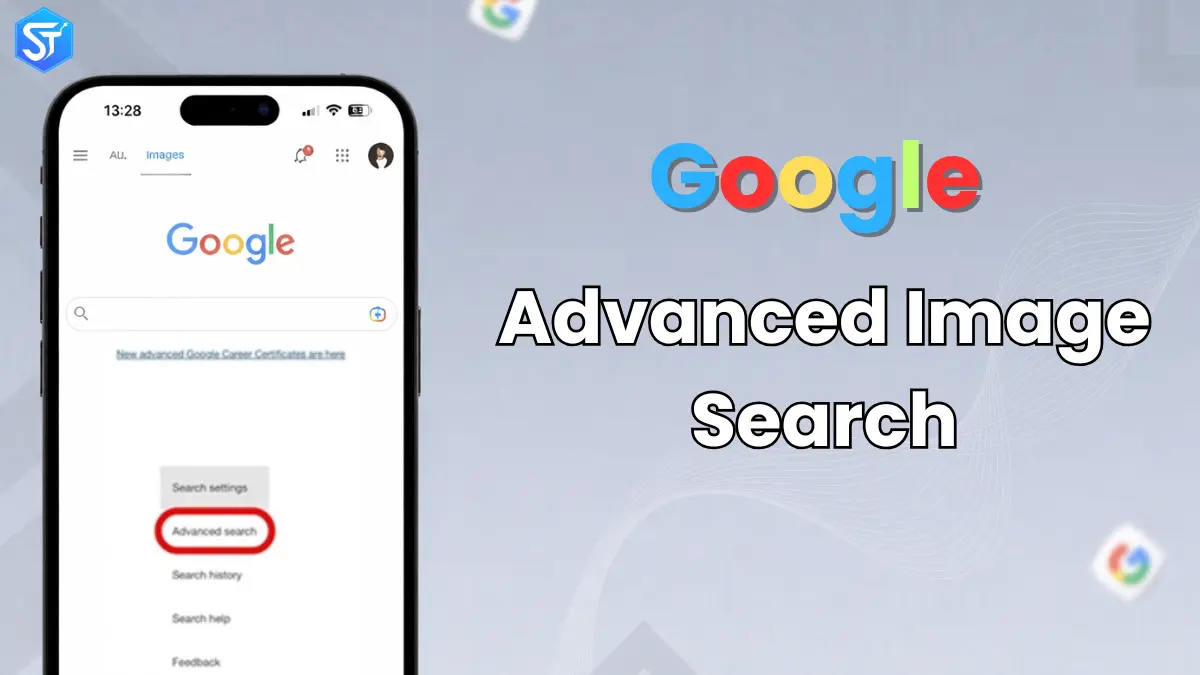
Have you ever tried to search for an image on Google and wasted time scrolling through random or poor-quality images? It happens to almost everyone. We use Google Images all the time, but many people don’t know that there’s a smarter way to quickly find the image you’re looking for. That’s where Google’s Advanced Image Search comes in. This hidden tool lets you narrow down your results by size, color, file type, usage rights, and the website where the image appears.
It’s perfect for anyone whether you’re a student looking for copyright-free photos, a blogger looking for the right banner, or a marketer checking out visuals used by competitors.
The best part is that it’s free and already part of Google. You don’t need to download anything or learn complicated steps. With just a few clicks, you can filter out the noise and find what you’re looking for in seconds.
In this guide, we’ll walk you through how to use Google’s Advanced Image Search step by step, share easy tips, and help you get better results whether you’re doing research or just looking for ideas. Once you’ve tried it, you’ll wonder why you didn’t use it before.
What is Advanced Google Image Search?
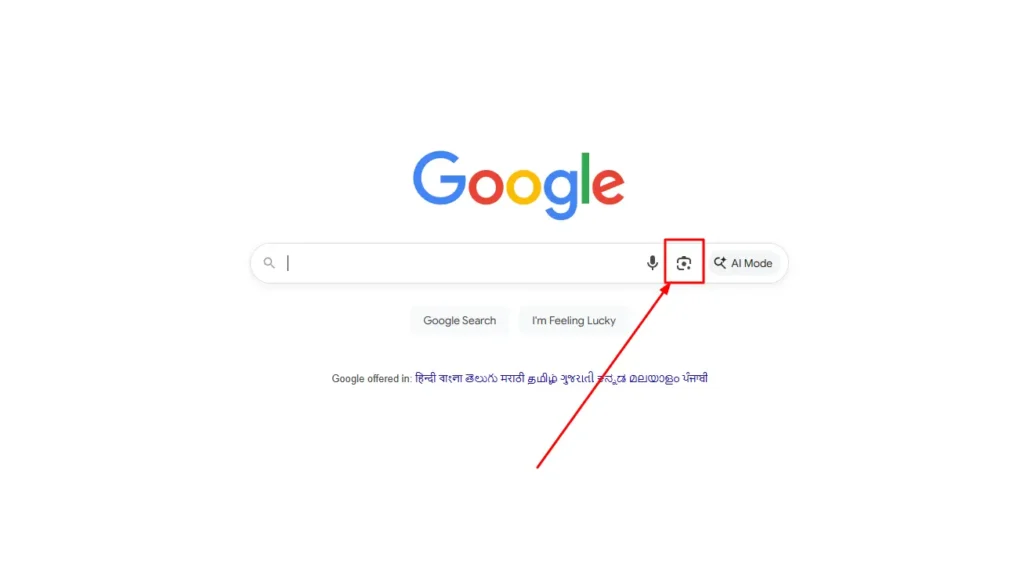
Most people search for images by typing a word or two into Google and then scrolling through the results. But if you want more control — like clear, high-quality photos, free-to-use images, or a specific file type then you need to do a more thorough search.
That’s where Advanced Google Image Search comes in. It’s a hidden tool that lets you narrow your search with special filters. You can also choose specific size, color, file type (like PNG or clip art), usage rights, location, and the date the image was posted. These filters are very useful for students, designers, and digital marketers.
Think of it as a personal control panel or your own custom dashboard for searching for images. It lets you skip the extra results and focus only on the images you need.
So instead of wasting time scrolling through random images, you can find exactly what you need in seconds. Whether you’re creating a design, creating an ad, or checking out other creators’ ideas, this tool makes your search fast, easy, and professional.
How to Use Google Advanced Image Search for Competitive Research
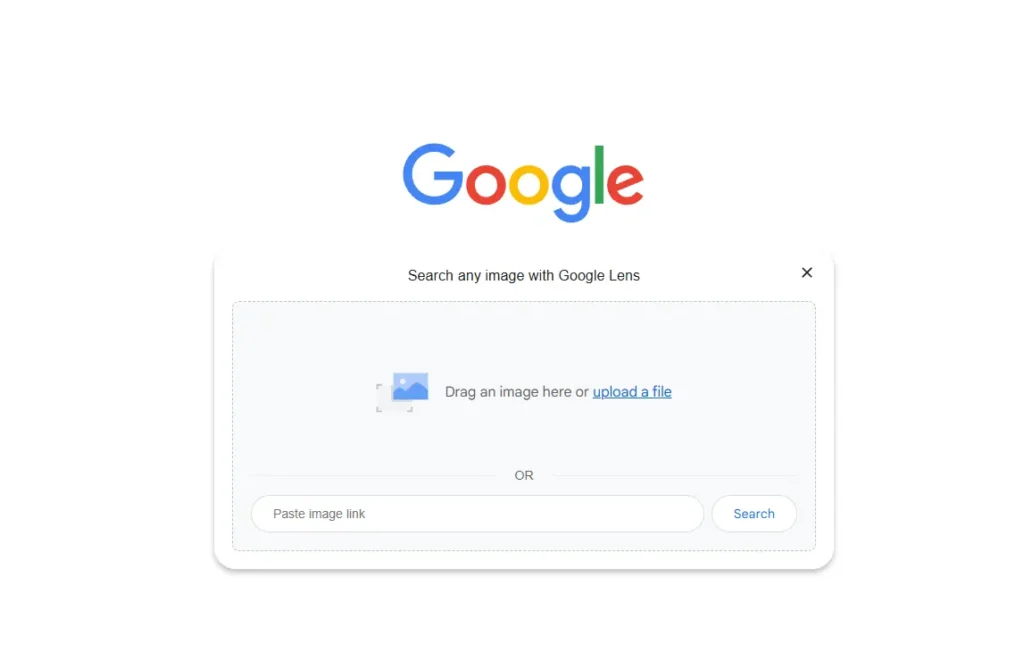
If you want to stay ahead of your competition, you can use Google Advanced Image Search to:
Find competitors with a specific word or phrase in their images
When you’re starting a business or entering a new market, one of the first things you should do is find out who your main competitors are. Once you know them, you can adjust your marketing plans to match the competition. Along with finding your main competitors, you can also check out their visual marketing style.
Look at whether they create infographics, how they take product photos, and what titles they give their images. This can help you improve your own product images and give you new ideas for blogs and social media.
Find guest blogging opportunities
If you already guest blog, you’re on the right track. If not, you’re missing out on a great way to get backlinks and grow your brand. Guest blogging can make your brand look like a leader and attract more visitors to your website.
Finding the right websites for guest posts can be time-consuming. A reverse image search can show you where your competitors have written guest posts. This way, you can create a list of websites that are relevant to your brand and audience.
Focus on websites that can attract more visitors, get better engagement, increase ROI, and influence your audience. Once you have your list, start working on your pitch. Most guest bloggers (87%) choose their own topics, and editors love new and unique ideas.
See the latest trends using time filters
Once you’ve set your main search filters, you can choose a time range anytime, last 24 hours, last week, last month, or last year. The “time” filter helps you quickly find what’s trending in your niche.
Write better product image descriptions
Good product image descriptions can help you sell more. They also help search engines rank your products in search results, image search, and shopping tabs. If your products aren’t near the top, many people won’t see them.
Google Advanced Image Search can help you improve your product rankings. Use the domain filter and find keywords related to your products. What keywords are your competitors using in their image titles?
Also Read: What’s The Main Difference Between Internal Links vs. External Links (2026)
Google Advanced Image Search Filters
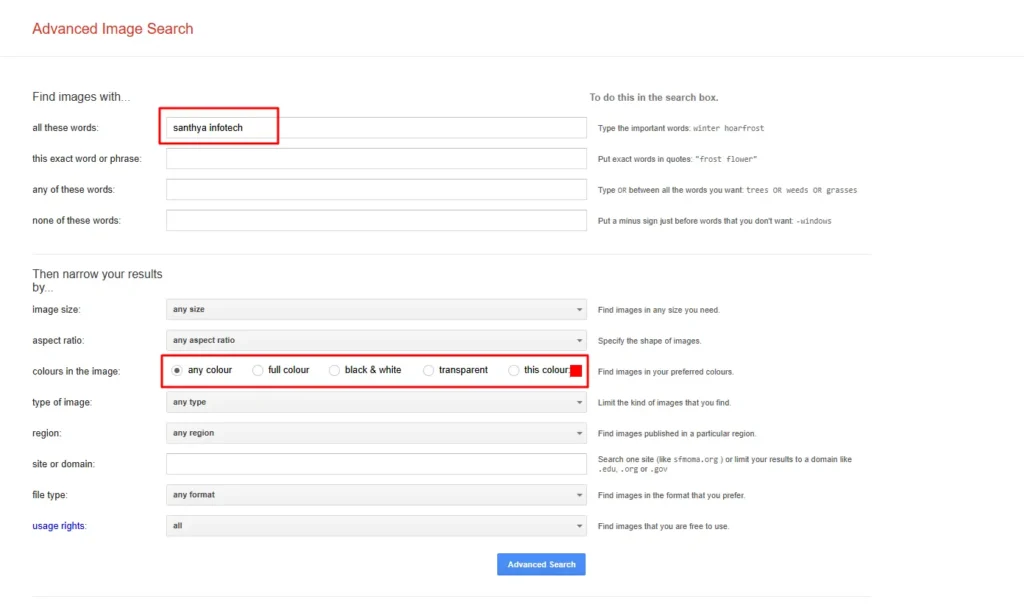
You can filter your image results by:
Image Size
- Choose from large, medium, small, or icon.
- This makes it easy to get the image size you want.
- Whether you want a large “hero” photo or a small thumbnail, this tool helps you quickly choose the right size.
Image Color
- Choose from black and white, transparent, or colors like blue, red, yellow, and more.
- This makes it easy to find images with the colors you want.
- For example, if you write about beach trips and need photos with light blue water, this filter will find them quickly.
Image Usage Rights
- You can choose from labeled for reuse with improvements, labeled for reuse, labeled for non-commercial reuse with changes, or labeled for non-commercial reuse.
- This shows you which photos you can use and which you can’t.
Image Type
- Choose clip art, line drawing, or GIF.
- This helps you find animated or drawn images in a specific style.
Time
- Choose a time from the last 24 hours, last week, last month, or last year.
- Makes it easy to get new photos when you need recent images for your topic.
Read More: How to Remove Your Listing on Whitepages: A Complete Guide in 2026
Popular Alternatives to Google Advanced Image Search
You have already learned about Advanced Image Search. Now let’s look at some simple and useful alternatives. These tools help you search for images in a smart way.
1. Reverse Image Search
Reverse image search is a very simple method. All you have to do is upload an image or paste its link. Then the tool shows results related to that image.
This method helps you find out where the image comes from. You can also see which websites are using the same image. It saves you time and reduces manual searching.
You can also check if the image is real or edited. If it is real, you get its original source. If it is fake, you can track where people are using it online.
Key features of Reverse Image Search:
- Find similar images
- Find the original source
- See where an image appears online
- Check if a photo is real or fake
- Use it for shopping and product searches
2. Google Lens app
Google Lens is a smart tool that reads and understands images. You upload a picture, and it returns useful information.
For example, if you see a dress or a product, Lens helps you find similar items online. It also helps you learn about things, places, and more.
You can also use it as a study aid. It gives quick answers and step-by-step solutions.
Key features of Google Lens:
- Scan QR codes and barcodes
- Find similar products
- Identify foods and recipes
- Find skin problems
- Learn about art and objects
3. Bing Visual Search
Bing Visual Search lets you search using images instead of text. You upload a picture, and it shows similar images and related information.
It uses AI and computer vision to understand what’s inside the image. It quickly detects objects, text, and details.
For example, if you upload a photo of a plant, it helps you find the name of the plant and where to buy it.
Key features of Bing Visual Search:
- Image and object recognition
- Find similar images
- Identify images and animals
- Read text from images (OCR)
4. Lenso.ai – Smart AI Image Search Tool
Lenso.ai is powered by AI and delivers powerful image search results. You upload an image, and it shows matches across different groups like people, places, or similar images.
It also supports facial recognition. You can also set alerts to get updates when a similar image appears online.
You can filter results using keywords or domains. You can also sort results by newest or best match.
Lenso.ai Key Features:
- AI-powered image search
- Facial recognition system
- Large image database
- Alerts for new matches
- Smart filters and sorting
Example of using Google Advanced Image Search
Finding photos or images on Google is very easy. The Google toolbar gives you a variety of options to choose from. Click the Images button to open Google’s Images section.
In the search box, type a specific word or phrase, such as vegetarian pizza, and press the search icon. You’ll then see several photo and image results.
Below the Google toolbar, you’ll find additional words that can help narrow your search. Some of these include thin crust, vegetable, vegetarian, California Pizza Kitchen, and more.
If you’re looking for a specific type of image file, include the file type in your search. For example, you could type file type:gif vegetarian pizza in the search bar. You can type it with or without the quotation marks.
Conclusion
When you want to find specific images online, Santhya Infotech Advanced Image Finder is a great option. This detailed guide aims to help you understand its features and use it effectively while searching for images. By applying the right filters, you can easily find high-quality and relevant visuals that suit your needs.
You may also like: What’s The First Step in The Search Engine Optimisation Process for Your Website?
FAQs: People Also Ask
Regular search shows you a wide range of images, while advanced search lets you filter results by factors like image size, file type, and license. This helps you find the most relevant images without wasting time browsing irrelevant images.
Not in every case. Always check the usage rights to make sure you are using images legally. Even if the filters show images available for reuse, it is best to check the license or the original source website before using them, especially for business or promotional purposes.
Google offers you about 5-6 filters to quickly find the right image:
- Size (large, medium, icon)
- Color (full color, black and white, transparent)
- Type (photo, clip art, illustration)
- Usage rights
- File type (JPG, PNG, GIF)
These filters help you select better and more accurate images.
Bloggers, students, and teachers get the most help from this tool. They can find clear and useful images for blogs, homework, and presentations without wasting time.
Not every image is free to use. You should apply the “Usage rights” filter to find images that are reusable. However, always check the original website or license before using any image, especially for commercial work.